Suno Music Distribution
(Step-by-Step Guide)
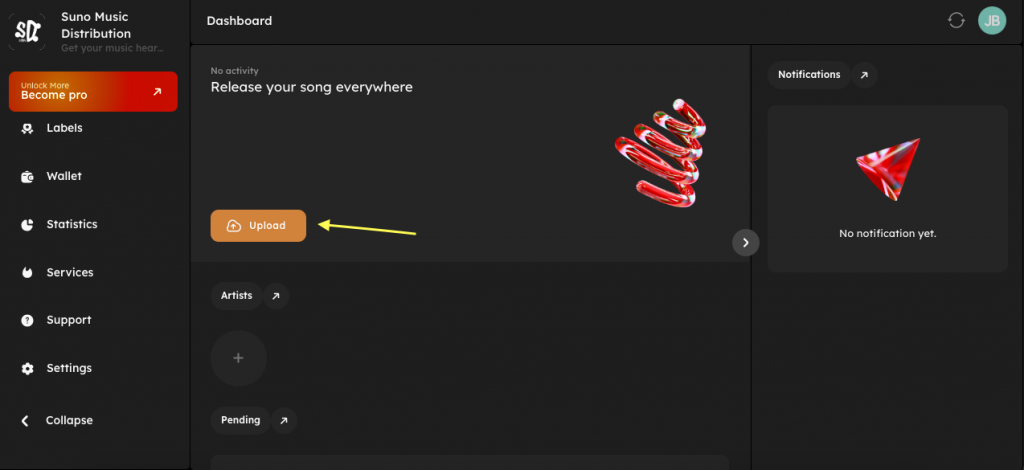
Log in to your Suno Music Distribution Dashboard
On the Dashboard, click Upload
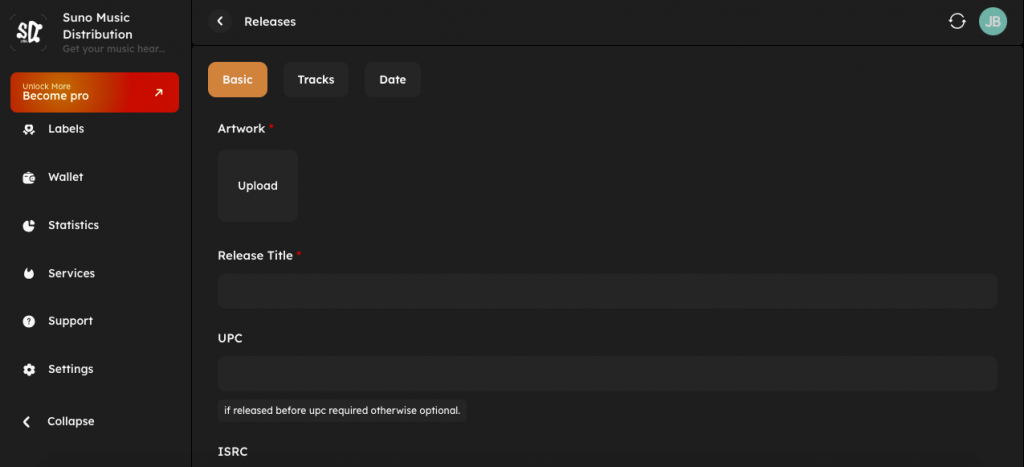
You will be redirected to Releases
Upload a square image (3000 × 3000 px recommended)
JPG or PNG format only
No logos, URLs, prices, borders, or social media text
Enter your song or album title
Example: Tera Naam
Tera Naam
Required only if the song was released before
Leave blank for a new release (UPC will be generated automatically)
Required only for previously released tracks
Leave blank for new uploads
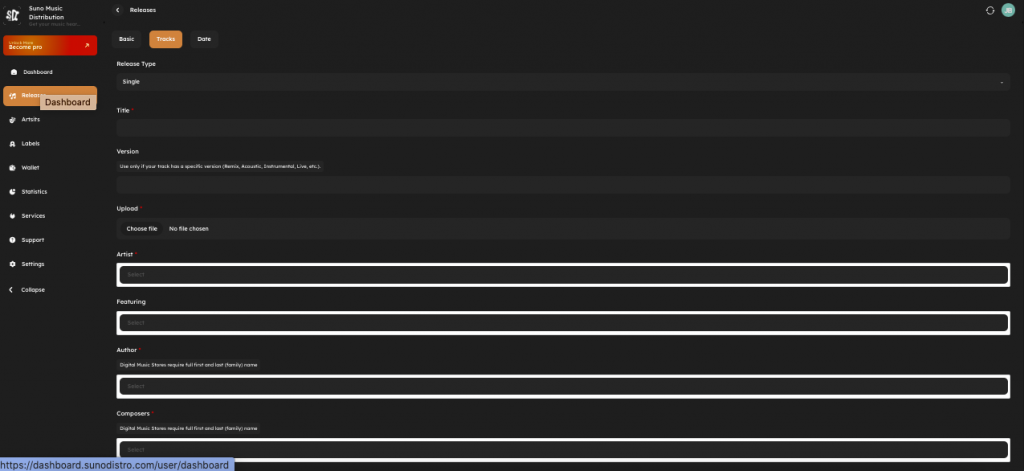
Select Single (for one track) Album (for multiple tracks)
Enter the exact song title
Use only if applicable:
Remix
Acoustic
Instrumental
Live
Leave empty for standard versions.
Upload WAV file only
16-bit or 24-bit, 44.1kHz
MP3 files are also accepted
Select the main artist
Artist must be added first in the Artists section
Add if another artist is featured
Otherwise leave blank
Enter the lyricist’s first name and last name
Required by digital stores
Enter the composer’s full legal name
Required for publishing metadata
Enter the producer’s name
Can be the same as artist or composer
Enter publisher name if available
Independent artists can leave this blank
Select your label name
Independent artists should select or create their own label
Example:℗ 2026 SunoDistro
℗ 2026 SunoDistro
Represents the sound recording owner.
Example:© 2026 SunoDistro
© 2026 SunoDistro
Represents the composition copyright.
Select Yes only if the song contains explicit language
Otherwise select No
Choose the most relevant genre
Example: Bollywood, Pop, Hip-Hop, Indie
Select the primary language of the song
Select Yes only if the content requires a parental warning
Usually No for clean tracks
Paste full lyrics in UTF-8 plain text
Required for Instagram & Spotify lyrics features
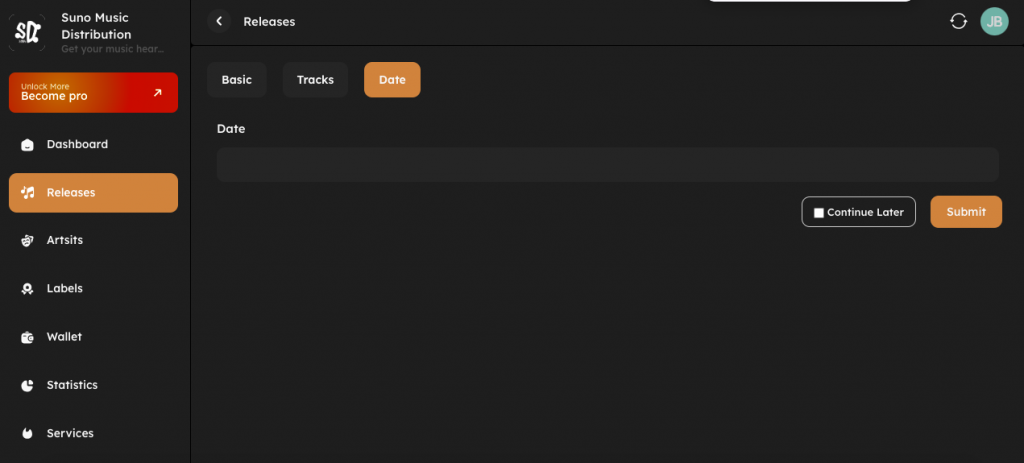
Select your release date
Recommended: 7–10 days in the future (for better promotion)
Allows proper store review and approval
Click Continue Later to save as draft
Click Submit to send for review
Release status becomes Pending
SunoDistro reviews your content
After approval, music goes live on:
Spotify
Apple Music
Instagram / Facebook
YouTube Music
250+ global platforms